What does Collate Mean When Printing
When you click “Print,” you’re often met with a handful of options that seem straightforward until you encounter the word “Collate.” Many users aren’t quite sure what it means or whether they need it, especially when printing documents with multiple pages or multiple copies.
This article breaks down the meaning of “collate,” when to use it, and how it affects your documents, so you can print with confidence every time.
What Does “Collate” Mean in Printing?
To collate means to arrange printed pages in the correct, sequential order. When you print multiple copies of a multi-page document, the collate option determines whether each printed set is grouped together in its proper page order or printed page-by-page in batches.
Collation is especially important for reports, booklets, manuals, and any document where the order of pages matters.
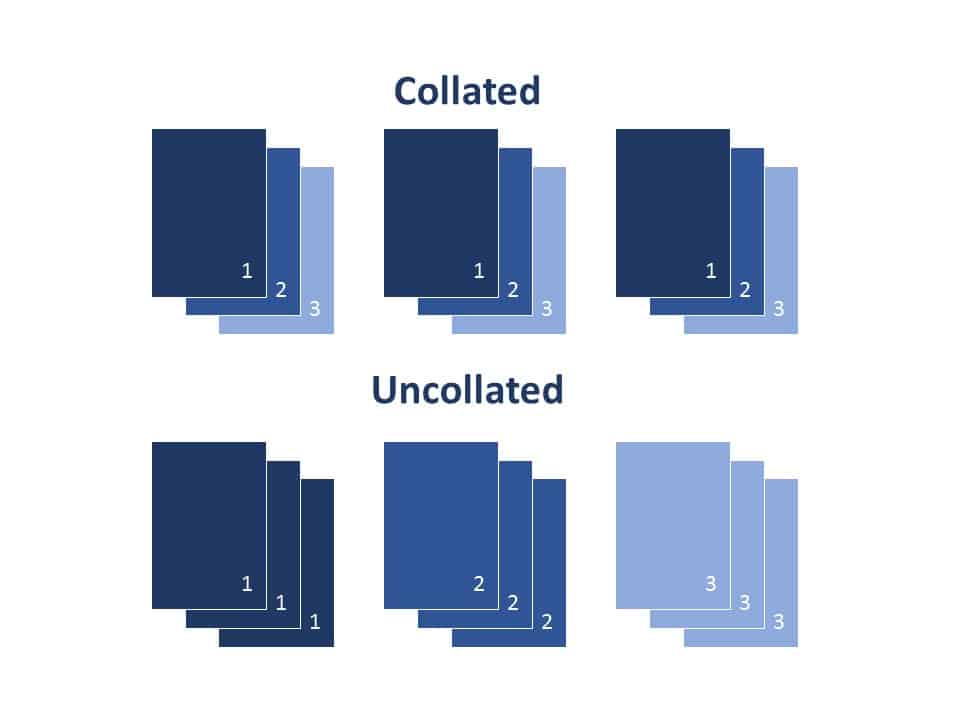
Collated vs. Uncollated Printing
Collated Printing
When the collate setting is ON, each copy is printed from the first page to the last page before moving on to the next copy.
Example (3-page document, 3 copies):
- Copy 1: 1, 2, 3
- Copy 2: 1, 2, 3
- Copy 3: 1, 2, 3
Best for:
- Reports
- Proposals
- Booklets
- Instruction manuals
Uncollated Printing
When collate is OFF, the printer outputs all copies of page 1 first, then all copies of page 2, and so on.
Example (3-page document, 3 copies):
- 1, 1, 1
- 2, 2, 2
- 3, 3, 3
Best for:
- Handouts
- Flyers
- Worksheets
- Forms meant to be separated or distributed
Why Collation Matters
Collation plays a big role in print efficiency and organization. Here’s why it’s important:
1. Saves Time During Assembly
If you need neatly assembled document sets, like proposals or manuals, collation prevents time-consuming manual sorting.
2. Prevents Mistakes
Misordered pages can make a professional document look sloppy. Collation ensures each copy is in the correct sequence.
3. Improves Workflow for Binding and Stapling
Whether you’re stapling or binding, collated sets ensure everything lines up correctly.
4. More Professional Presentation
Collated documents look cleaner and are easier to distribute and review.
Potential Drawbacks
- May slow printing slightly on older printers
- Not necessary for single-page prints or documents meant to be separated
Real-World Examples of Collated vs Uncollated
Scenario 1: Printable Reports
You’re printing 20 copies of a 10-page business report.
👉 Use collated printing so that each report comes out complete and ready to distribute.
Scenario 2: Flyers for an Event
You need 300 copies of a single-page flyer.
👉 Collation doesn’t matter, because there’s only one page.
Scenario 3: Teacher Printing Classroom Worksheets
A teacher prints 25 sets of a 3-page worksheet but wants to hand out page 1 to all students first.
👉 Use uncollated printing so pages print in separate stacks.
How Collation Works on Different Printer Types
1. Home & Office Printers
Many small printers rely on software collation, meaning your computer sends the pages in the correct order. This works well for small print jobs but may slow down larger ones.
2. Multifunction / Commercial Printers
High-end printers often include hardware collation, with multiple trays and sorting bins.
These machines can handle large jobs quickly and support additional finishing options such as stapling and booklet-making.
3. Online Printing Services
Most online printers automatically collate multi-page documents, especially for booklets, brochures, or manuals.
Customers typically see options like:
- “Collate”
- “Reverse Collate”
- “Print as Separate Pages”
How to Turn Collation On or Off
Windows
- Press Ctrl + P or go to File → Print.
- Find the Copies box.
- Check or uncheck Collate (often shown with stack icons).
- Print.
macOS
- Open the Print dialog.
- Look under Copies & Pages.
- Check or uncheck Collated.
- Print.
Microsoft Word / Google Docs
- Similar layout: go to the print dialog and look for the “Collate” checkbox under Copies.
Printer Touchscreens
- Look under categories like Finishing, Output, or Options.
- Toggle Collate on or off.
Collation is one of the simplest yet most useful printing settings. It ensures that multi-page documents come out in the correct order, saving time, reducing errors, and improving professionalism. Whether you’re printing reports, worksheets, or marketing materials, knowing when to use collate helps you work smarter and more efficiently.
The next time you print a multi-page document, take a moment to check whether the collate option is turned on; it may save you a lot of hassle.
FAQs
1. Should I collate single-page documents?
No collation makes no difference for single-page jobs.
2. Is collating the same as duplex printing?
No.
- Collating = page order
- Duplex = printing on both sides of the paper
They can work together, but they’re different features.
3. Why is my collate option greyed out?
Possible reasons:
- Your printer or driver doesn’t support collation
- You selected a paper source or finishing option that overrides it
- The document only has one page
4. What is reverse collate?
It prints each set in reverse order (e.g., 3-2-1).
Useful when printing documents that automatically stack face-down.
5. Is collation the same as binding?
No collation organizes pages; binding connects them (stapling, comb, spiral).